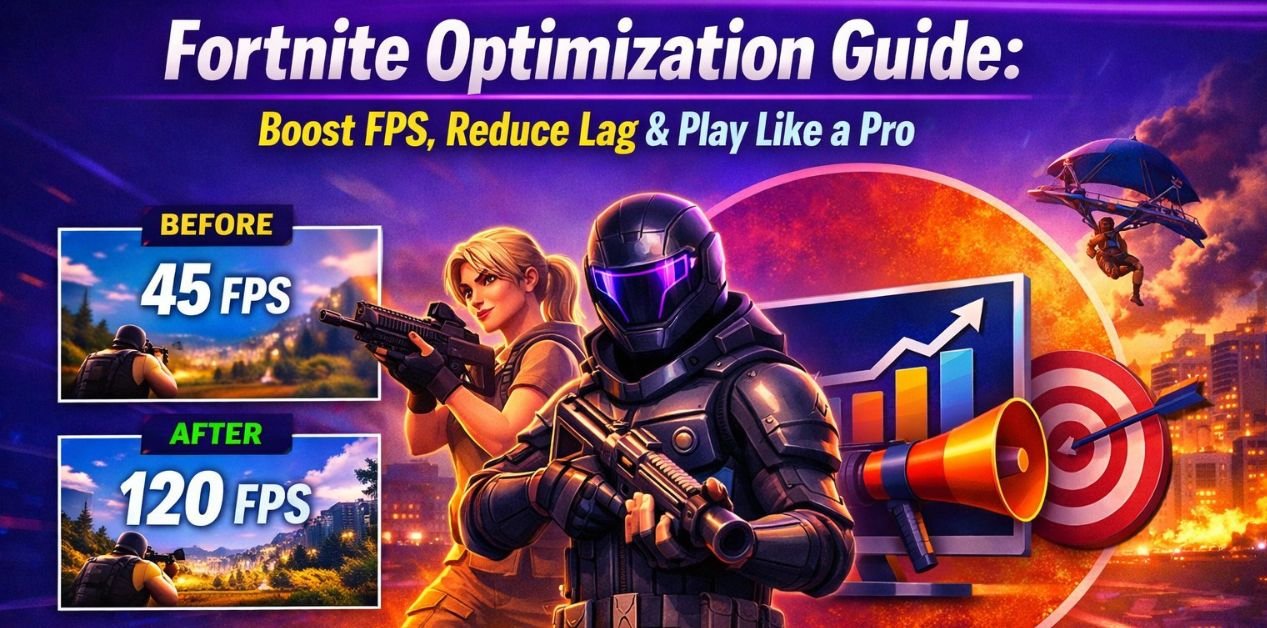
Fortnite Optimization Guide (2026): Boost FPS, Reduce Lag & Play Like a Pro
If your game stutters during fights, drops frames in busy zones, or just doesn’t feel smooth-even on decent hardware-you’re not alone. Fortnite has evolved significantly, and with each update, performance demands increase.
Table of Contents
This Fortnite optimization guide is designed to help you squeeze maximum performance out of your setup-whether you’re on a low-end PC or a high-refresh-rate gaming rig. You’ll learn practical, real-world tweaks used by competitive players to boost FPS, reduce input lag, and maintain stable gameplay in Fortnite Chapter 7 and beyond.
Let’s get straight into it.
Why Fortnite Optimization Matters in 2026
Fortnite today is far more demanding than it was a few years ago. With advanced lighting systems like Nanite and Lumen, larger maps, and more dynamic gameplay elements, performance can vary drastically.
Common Problems Players Face:
- Sudden FPS drops during fights
- Input lag affecting aim and builds
- Stuttering in high-density areas
- Poor performance despite good hardware
A proper Fortnite PC optimization guide helps you:
- Gain smoother gameplay (consistent FPS)
- Improve reaction time (lower latency)
- Get a competitive edge
Fortnite Optimization Settings: Best In-Game Tweaks for Maximum FPS
Your in-game settings have the biggest impact on performance. These are widely considered the best Fortnite optimization guide settings for 2026.
1. Display Settings
- Window Mode: Fullscreen (reduces input lag)
- Resolution: Native (lower if struggling)
- Frame Rate Limit: Match your monitor (144 / 240 / unlimited for testing)
2. Graphics Settings (Optimized for Performance)
- Rendering Mode: Performance Mode (best FPS boost)
- View Distance: Medium (important for visibility)
- Shadows: Off
- Anti-Aliasing: Off or Low
- Textures: Low or Medium
- Effects: Low
- Post Processing: Low
3. Advanced Graphics (Chapter 7 Optimization Guide Tip)
- Turn Nanite Virtualized Geometry OFF
- Disable Lumen Global Illumination
- Disable Ray Tracing
These features look great-but they destroy FPS on most systems.
Windows Optimization for Fortnite Performance
Many players ignore system-level tweaks, but they can significantly improve consistency.
1. Enable Game Mode
- Go to Windows Settings → Gaming → Game Mode → Turn ON
This prioritizes system resources for gaming.
2. Adjust Power Settings
- Set to High Performance or Ultimate Performance
Prevents CPU throttling during gameplay.
3. Disable Background Apps
Close:
- Browsers (especially Chrome)
- Discord overlays
- Streaming software (if not needed)
4. Optimize Startup Programs
- Open Task Manager → Startup tab
- Disable unnecessary apps
5. Update Drivers
Always use the latest:
- GPU drivers (NVIDIA/AMD)
- Windows updates
Fortnite Config Tweaks (Advanced Optimization)
If you want a full Fortnite optimization guide, config tweaks can give you extra FPS.
Steps:
- Navigate to: C:\Users\YourName\AppData\Local\FortniteGame\Saved\Config\WindowsClient
- Open
GameUserSettings.ini
Key Tweaks:
- Set scalability settings to low manually
- Adjust resolution scaling if needed
- Enable multi-threaded rendering
Important: Only modify settings you understand. Incorrect changes can cause crashes.
NVIDIA & AMD Settings for Better Performance
1. NVIDIA Control Panel Settings
- Power Management Mode: Prefer Maximum Performance
- Low Latency Mode: Ultra
- Texture Filtering Quality: High Performance
- Vertical Sync: Off
2. AMD Radeon Settings
- Radeon Anti-Lag: Enabled
- Radeon Boost: Enabled
- Texture Filtering Quality: Performance
- Wait for Vertical Refresh: Off
These tweaks reduce input lag and improve frame stability.
Reduce Input Lag (Pro-Level Tweaks)
This is where most Fortnite performance guide Reddit discussions focus-and for good reason.
1. Key Tips:
- Use wired mouse and keyboard
- Disable mouse acceleration in Windows
- Use low DPI + in-game sensitivity tuning
- Enable NVIDIA Reflex Low Latency (if available)
2. Monitor Optimization:
- Use highest refresh rate (144Hz / 240Hz)
- Enable G-Sync / FreeSync (optional, depends on preference)
Best Fortnite Optimization Guide for Low-End PCs
If you’re running an older system, don’t worry-you can still play smoothly.
1. Low-End Optimization Checklist:
- Use Performance Mode ONLY
- Set resolution to 1600×900 or lower
- Disable replays (settings → replays OFF)
- Reduce 3D resolution to 70–80%
- Close all background apps
2. Extra Tip:
Install Fortnite on an SSD instead of HDD-this alone can reduce stutters significantly.
Network Optimization: Reduce Ping & Lag
FPS isn’t everything-network stability matters just as much.
1. Improve Your Connection:
- Use Ethernet instead of Wi-Fi
- Restart router regularly
- Choose the closest server region in settings
2. Reduce Packet Loss:
- Avoid downloads while gaming
- Limit devices on your network
- Use Quality of Service (QoS) settings if available
Fortnite Chapter 7 Optimization Guide: What’s New?
Chapter 7 introduced:
- Heavier graphics rendering
- Larger environments
- More dynamic physics
What Changed for Optimization:
- Performance Mode is now more important than ever
- CPU optimization matters more than GPU in some cases
- Memory usage increased → 16GB RAM recommended
Common Mistakes That Kill Performance
Avoid these if you want the best Fortnite optimization guide results:
- Using Epic settings on mid-range PCs
- Ignoring driver updates
- Running multiple overlays (Discord, GeForce, etc.)
- Playing on outdated Windows versions
- Not monitoring temperatures (thermal throttling)
FAQ: Fortnite Optimization Guide
1. What is the best Fortnite optimization guide for 2026?
The best approach combines Performance Mode, low graphics settings, updated drivers, and system-level optimizations. Avoid heavy features like ray tracing.
2. Does Performance Mode increase FPS in Fortnite?
Yes, significantly. Performance Mode removes complex visual effects and can boost FPS by 30-100%, especially on low-end systems.
3. How do I fix FPS drops in Fortnite?
– Lower graphics settings
– Update GPU drivers
– Close background apps
– Check CPU/GPU temperatures
4. Is Fortnite more CPU or GPU intensive?
In recent updates, Fortnite has become more CPU-dependent, especially in Performance Mode and high-player situations.
5. Can I play Fortnite smoothly on a low-end PC?
Yes. With proper optimization (low settings, Performance Mode, reduced resolution), even older systems can run Fortnite smoothly.
Conclusion
Optimizing Fortnite in 2026 isn’t just about lowering settings-it’s about making smart adjustments across your entire system. From in-game tweaks to Windows optimization and GPU settings, each step adds up to smoother gameplay and better performance.
Start with the basics:
- Enable Performance Mode
- Optimize your system settings
- Reduce background usage
Then move into advanced tweaks for maximum gains.
If you’re serious about improving your gameplay, your next step should be exploring a dedicated hardware upgrade guide or testing different sensitivity and input settings to match your playstyle.
Smooth gameplay isn’t just satisfying-it wins fights.