How to do an image search on google? (practical guide 2026)
Want to know how to do an image search on Google? Then, this article is for you!
Table of Contents
Images play an important role as visual content in Digital Media. They help people to connect and engange with the content. This is the reason why people search for images on the internet for both personal and professional purposes.
You can get images on Google by entering text as keywords and also you can reverse search images using an image.
Google is one of the popular search engines and you might be wondering that it has a robust algorithms and extensive database for crawling, indexing, & ranking the websites for both text and image searches.
This made it a go-to choice for users to find the exact information on images, search for related visuals, or even finding similar image content.
Google provided an intuitive interface and excellent features so that users can perform seamless search process. It’s accessible to everyone over the internet.
How to do an image search on Google – Methods of Image Search
Many users search for the text content by entering text or keywords on Google’s search box and clicks on the Search button. They get the information or images they search for.
But, here is the catch! You can search the related images or similar visual content using an image. Here below, I’ve provided all possible methods to perform image search. You can follow any of these methods accordingly.
Enter Keywords to Search Images on Google
In this method, you can search images by entering specific keywords on Google search engines and selecting Images.
Upload an Image to Search on Google.com
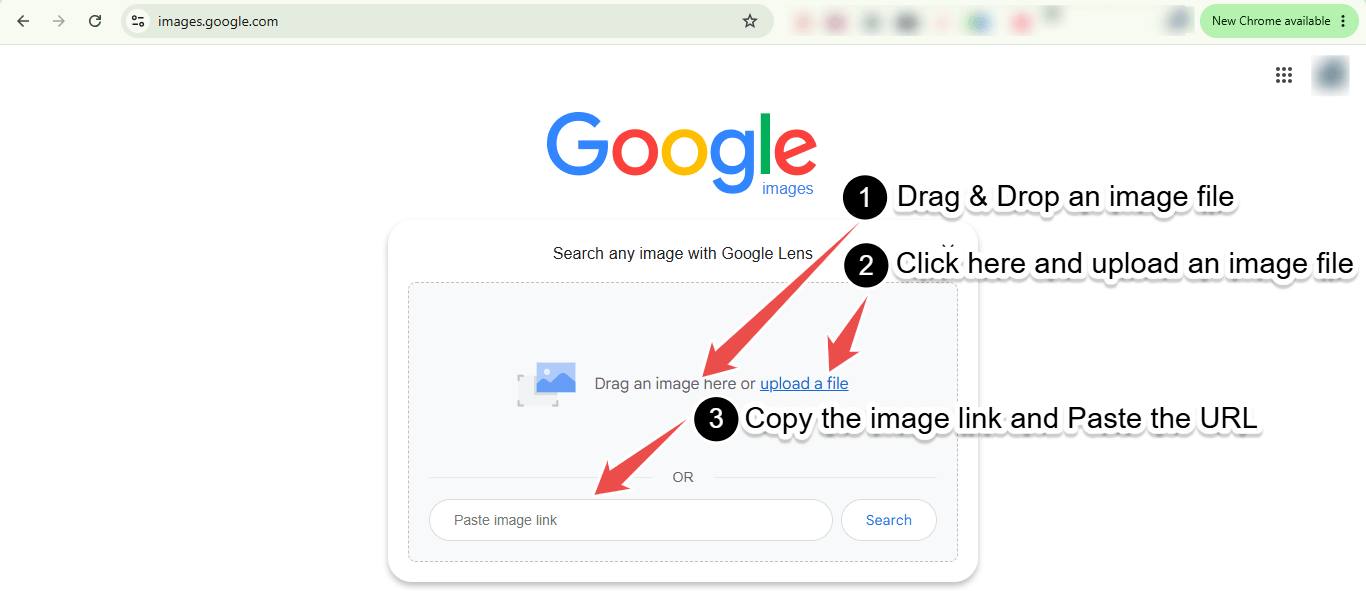
If you want to search similar looking image by using the image which you already had on your PC or laptop, or smartphone, then you can upload the image after choosing Search by image option. Here below, I have provided the step-by-step guide. Follow the steps to search similar or related images from your device.
Also Read: Windows 11 ISO Download
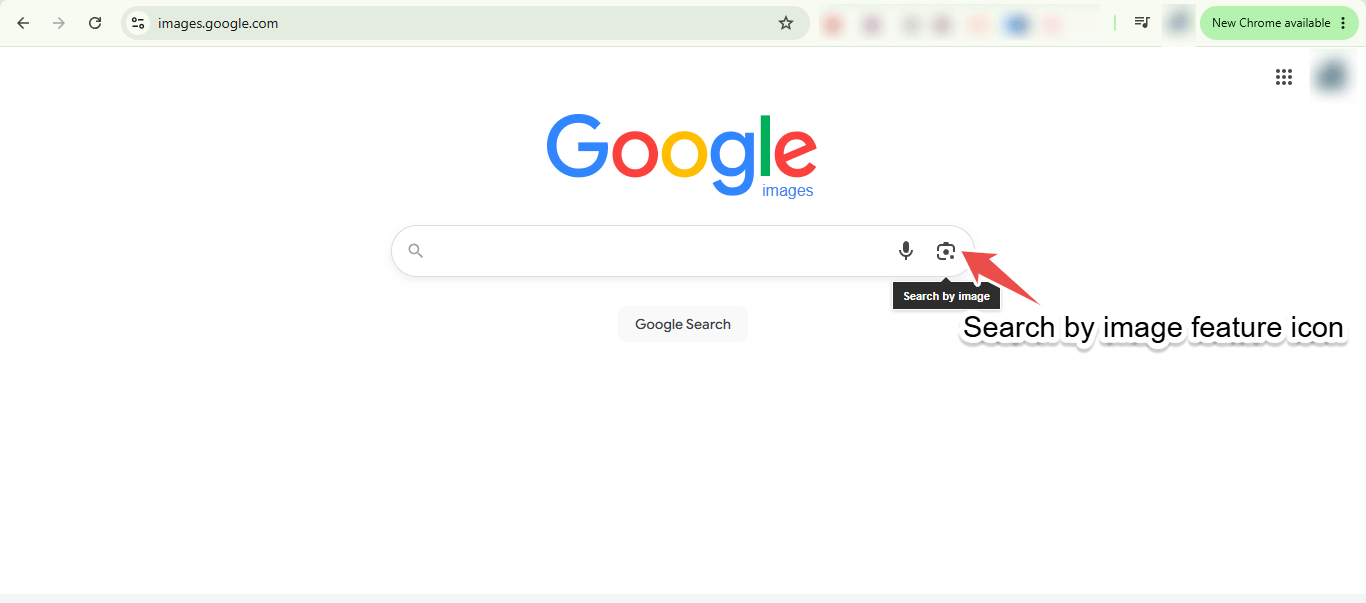
Search Images by Using Search by Image Feature on Google
Google has rolled out an amazing feature named Search by Image. Using this feature, you can directly upload the image from your device and perform the reverse image search for finding sources, and related images on Google.com. Below step-by-step guide on how to use this guide so as to follow while performing the search for effective results.
Copy & Paste Image URL Method:
Step-by-step guide:
- Open your web browser and open Google Images by entering https://images.google.com/ in the address bar.
- Click on the camera icon that displays “Search by image” when hovered the mouse cursor on the icon.
- Here, paste the URL of the image in the “Paste image link” box and click on Search button.
Drag and Drop or Upload the File Method:
- In this method, you can upload an image file from your device by clicking on “upload a file” link in “Drag an image here or upload a file” section.
- Browse through your files on your storage or harddisk, select the image which you wish to search for finding similar images or source.
- Click on Open button in the dialogue box.
- The image uploads to Google, once it’s done click on the Search button.
- Now, Google will display the results related to your uploaded image image.
Perform Image Search by Entering Keywords on Google Images
In this method, users can directly enter the keywords on the search box to find similar images that are available on the web. Below, the step-by-step guide is provided to perform this type of search.
Step-by-step guide:
- Navigate to the https://images.google.com URL in the address bar on web browser.
- Enter the keyword in the Search box. For example, you can enter names of a person, place, technology, or anything to find the images related to your search term.
- Click on the Search button provided in the bottom of the search box.
- Now, Google will display the search results in the form of images which are related to your search term.
Using Google Lens app
Google Lens is the technology developed by Google. It is powered by Artificial Intelligence that uses your smartphone camera and uses deep maching learning to detect the objects in front of the camera lens. It also understands the objects and perform analysis to provide accurate results.
Using this app, users can perform actions such as scanning, shopping, translation, and more. If you want to use Google Lens for performing image or object search, follow the below provided step-by-step guide.
For this, you will have to install Google Lens app from Google Play Store. Also, you can find the Google Lens feature on Google.com. This is helpful to perform reverse image search even without installing app on your smartphone.
I recommend you to install Google Lens app as it provides some additional features so that you can use it to the fullest.
Step-by-step guide:
- Install the Google app from the Google Play Store or App Store on your smartphone. If you have already installed it, then you can open the app directly.
- Tap the camera icon as it now opens Google Lens.
- Point your camera at any object and tap on the capture button (circle shaped icon). Google Lens will capture the object in the form of an image and analyze what it sees.
- After analysis, it will display relevant results and information on your screen.
If you want to search by an image which is already saved on your device, follow the below provided steps:
- Open the Google Photos app on your device.
- Click or tap on the photo search button.
- A popup will appear asking you to give permission to access images using Gallery. You can choose any option between Just once or Always.
- Select the image file you want to search with.
- The app shows the selected image. In the bottom, it displays three options you have to choose among “Translate, Listen, Search“.
- Tap the Search icon. The related images and information will display in the search results for the selected image file.
Also Read: How to Enable Dark Mode on Google Chrome, WhatsApp, Twitter, and Facebook Messenger
Pros of Using Google Lens:
Convenience: You can simply point your smartphone camera at any object and get results almost instantly.
Versatility: It can analyse the image and identify text and translates, identify products and objects for shopping, and even much more.
Integration: This cool feature works seamlessly with other Google services like Google Translate and Google Maps.
Cons of Using Google Lens:
Accuracy: The effectiveness and accuracy can vary depending on the image quality and complexity.
Availability: Some features might be available only in some regions or languages.
Privacy Concerns: As this features has access to the camera, there might be some potential privacy implications that to be considered by the users.
Perform Reverse Image Search on Android, iOS, and Windows Devices
Windows
I have provided three methods to perform a reverse image search on Windows PC or Laptop. For this, you can use built-in system tools or standard web browsers.
Here below are easy and simple to search using an image instead of text:
Method 1: Using Windows Snipping Tool (Built-in)
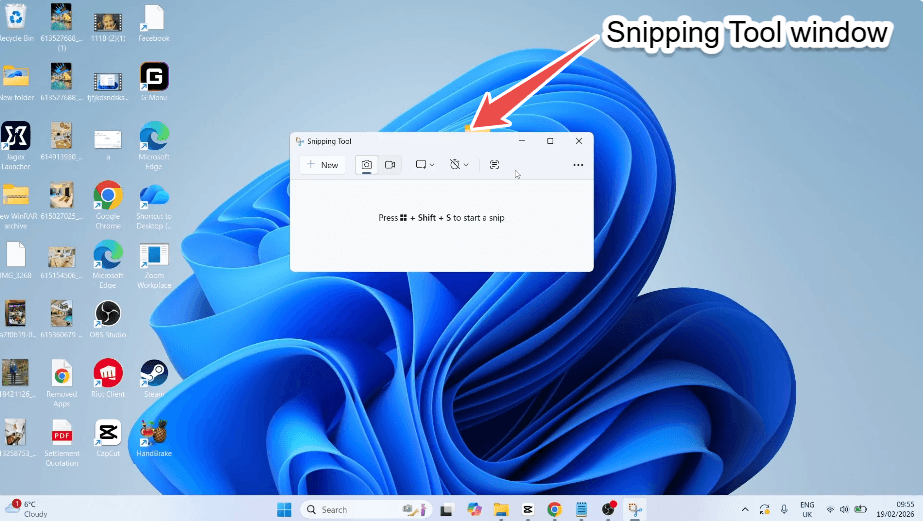
Windows has a cool feature named Windows Snipping Tool that is integrated visual search via Bing.
- Press Windows Key + Shift + S. This shortcut is to open the Snipping Tool.
- Click and drag a box over the area of your screen or image you want to search.
- Click the Snipping Tool notification that pops up in the bottom-right corner.
- Click the Bing Visual Search icon (You can find it at the top of the Snipping Tool window and it looks like a small magnifying glass over a square/bracket)
- Automatically, a browser window will open displaying your search results.
Method 2: Using Google chrome or Microsoft Edge (Web Browsers)
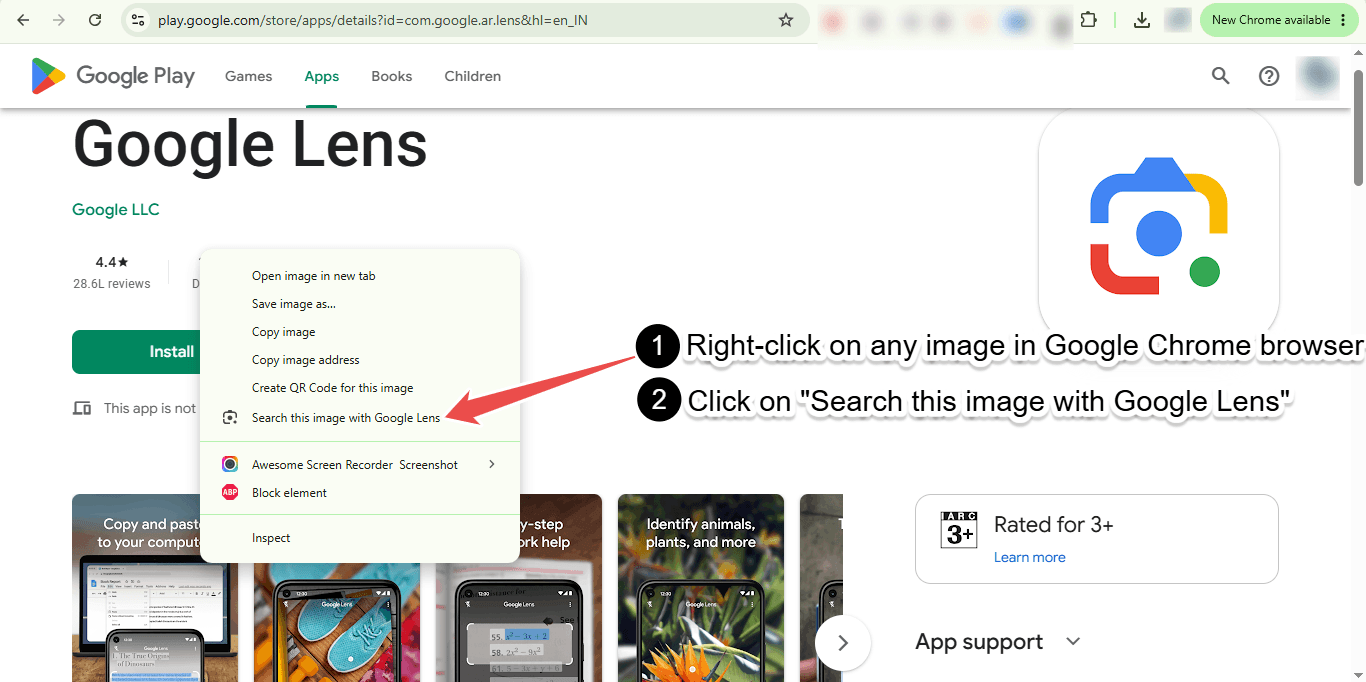
If the image is already open on a website or saved as a file on your computer, your browser is the fastest option for you to choose.
- For images on a website: Right-click on the image and select “Search image with Google” (in Chrome) or “Search the web for image” (in Microsoft Edge).
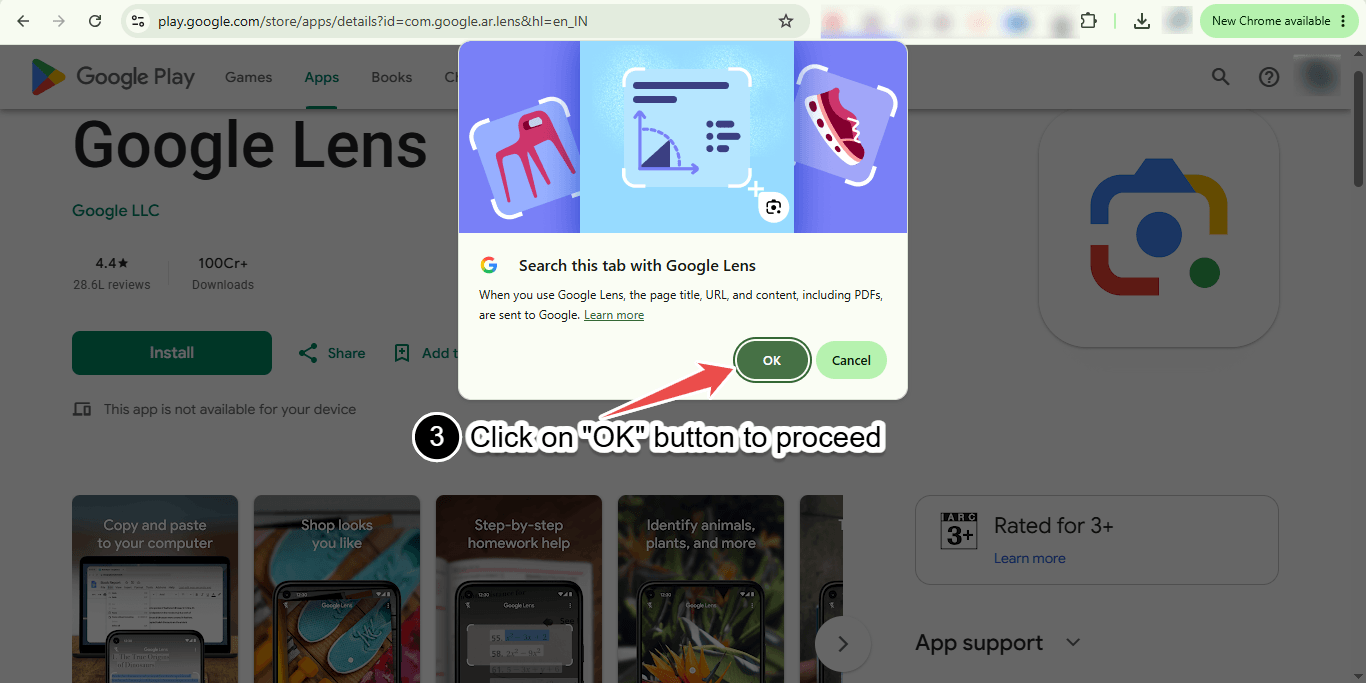
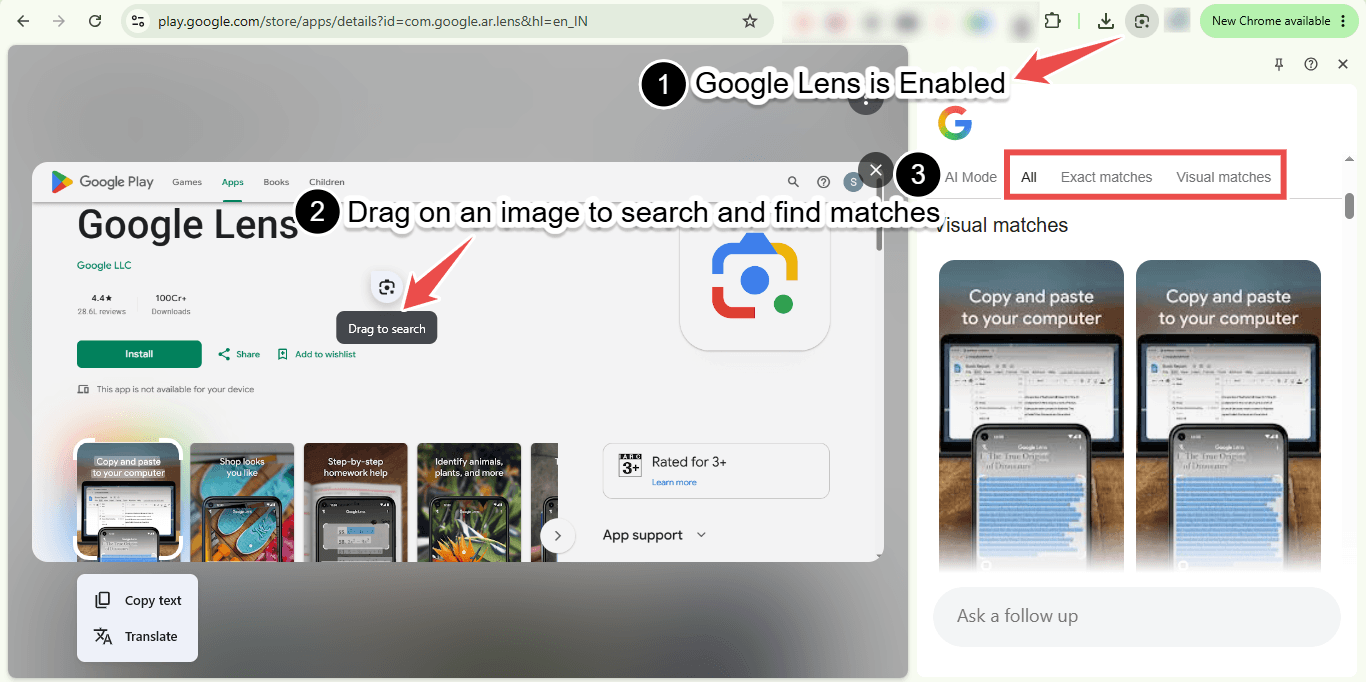
- For saved image files:
- Open your web browser and go to the Google Images or Bing Images.
- Click the camera icon in the search bar.
- Now, drag and drop your saved image file directly in the browser window or click “upload a file” to browse the file on your device and select the image file which you want to search.
Method 3: Using Dedicated Websites
If you are looking to search for specific types of results like for finding the original artist or photographer, these dedicated websites work perfectly on Windows:
- TinEye: This website is best for finding the exact duplicates, cropped versions, or the highest resolution of the images.
- Yandex: This website is exceptionally accurate for facial recognition, locating landmarks, and identifying clothing items.
iOS
To perform a reverse image search on iOS (iPhone or iPad), you can use built-in system features or your preferred mobile browser.
Here are the easiest ways to search using an image on your Apple device:
Method 1: Using the Photos App (Built-in Visual Look Up)
Apple has built-in image recognition directly inside your photo gallery.
- Open the Photos app and select your image.
- Look at the “i” (Information) icon at the bottom of the screen. If it has stars next to it, iOS has identified something in the image.
- Tap the icon (or swipe up on the photo), then tap “Look Up” (e.g., “Look Up – Plant”, “Look Up – Landmark”, or “Look Up – Dog”) to see search results.
Method 2: Using the Google App or Google Photos
Google Lens is highly accurate and available on iOS via Google’s official apps.
- Via the Google App: Open the app and tap the camera icon (Google Lens) right inside the search bar. You can upload a photo from your camera roll or take a live picture.
- Via Google Photos: Open your photo inside the Google Photos app and tap the Lens icon at the bottom of the screen.
Method 3: Using Safari (Best for Images on Websites)
If you are browsing a website in Safari and want to search for an image you see:
- Long-press the image on the webpage until a menu appears.
- Tap “Search Image” (this uses Bing or your default search engine settings).
- Alternatively, if you have the Google app installed, you may see an option to “Search Image with Google”.
Method 4: Requesting Desktop Site in Safari (For Saved Files)
If you want to use the traditional Google Images upload tool using a saved photo:
- Open Safari and go to google.com.
- Tap the “aA” icon on the left side of the address bar.
- Select “Request Desktop Website”.
- The page will reload. Tap the camera icon in the search bar, select “upload a file”, and choose your photo from your Photo Library.
Android
To perform a reverse image search on Android, you can use built-in tools or your mobile browser.
Here are the easiest ways to search using an image on your phone:
Method 1: Using Google Lens (Fastest for Saved Photos & Real World)
Google Lens is built into almost all Android devices and is the most powerful tool for identifying objects, text, and sources.
- From your Gallery/Google Photos: Open the image, then tap the Lens button (a camera frame icon with a dot inside) at the bottom of the screen.
- Using Circle to Search (On newer devices): Long-press your phone’s Home button or navigation bar, then circle or tap anything on your screen to search it instantly.
- From your Camera: Open the Google Assistant app or Google Search widget bar, tap the camera icon, and snap a live photo of what you want to search.
Method 2: Using the Google Chrome App (Best for Images on Websites)
If you see an image while browsing a website and want to look it up immediately:
- Long-press the image on the webpage until a menu pops up.
- Tap “Search image with Google” (or “Google Lens”).
- A panel will slide up from the bottom showing your search results.
Method 3: Using Mobile Browsers (For Saved Files)
If you have an image file saved to your device and want to use standard desktop search engines:
- Open Google Chrome and go to google.com.
- Tap the three vertical dots in the top-right corner of Chrome.
- Check the box next to “Desktop site”.
- The page will reload. Tap the camera icon now visible in the search bar.
- Tap “upload a file” and select the picture from your phone’s storage.
Benefits of Reverse Image Search
Key Benefits for Regular or Everyday Users
- No Keywords Needed: When you do not know the correct or exact words to describe for a concept or for an item you can perform search easily.
- Finding Sources: You can simply find out the sources of an image and other things that include discovering who created the art work, where an image first appeared online, or the name of an unknown landmark, animal, or plant.
- Fact-Checking and Verification: You can check whether a news picture, viral photo, or social media profile is real, altered, or stolen.
- Better Shopping: You can upload a photo of a piece of clothing, furniture, or any object to find similar images or products for comparing prices and finding buying options.
Key Benefits for Creators and Businesses
- Competitor Research: You can analyze what visual styles or stock photos your competitors use so your brand stands out.
- SEO Opportunities: You can find websites that use your images or visual assets without credit and request a backlink.
- Brand Monitoring: You can check if your competitors or any other companies are misusing your brand’s logo or selling counterfeit products using your media.
- Copyright Protection: You can track down unauthorized use of your digital art, product images, or photography.
Conclusion
This is all for now. You’ve learnt all the methods of performing image search on Google.com and other websites. I recommend you to master the image search as it opens the world of information at your finger tips.
There are other websites and platforms that offer image search such as Photo Sherlock, PimEyes, and many others. Try using these popular apps to search efficiently and accurately.
Consider sharing this article with your friends on social media because sharing is caring. If you’re facing any issues related to this topic, drop the issue in comments. If you need any help from my side and want to tell me and visitors your favorite tools or websites in comments.