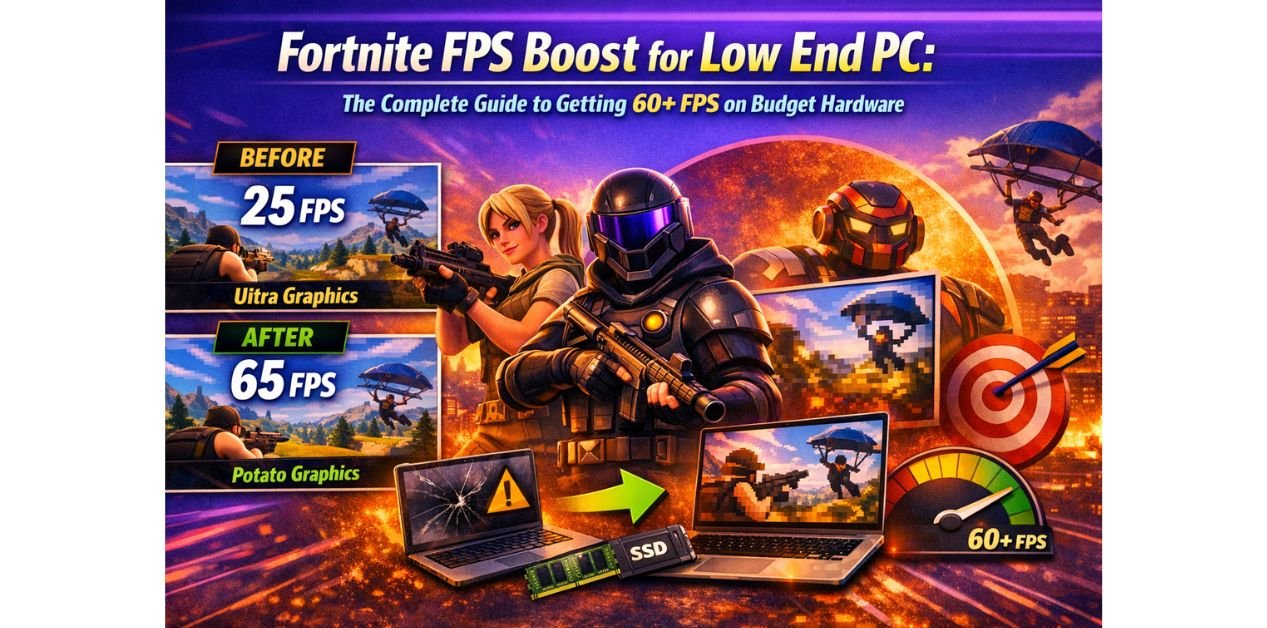
Fortnite FPS Boost for Low End PC: The Complete Guide to Getting 60+ FPS on Budget Hardware
You Don’t Need a New PC to Play Fortnite Smoothly
If you’re getting 20 to 30 FPS in Fortnite while other players seem to run the game effortlessly, you’re not alone – and the fix probably isn’t buying new hardware.
Table of Contents
Fortnite is one of the most optimized battle royale games available, and Epic Games has intentionally built it to scale across a huge range of machines. The problem is that default settings are almost never right for low-end hardware. The game guesses wrong, sets things too high, and your PC pays the price in stutters and lag.
This guide walks you through every proven method for a Fortnite FPS boost for low end PC – from in-game settings and Windows tweaks to FPS boost packs, laptop-specific fixes, and what you can realistically expect running Fortnite with just 4GB RAM. By the end, you’ll have actionable steps that can double or even triple your frame rate without spending a rupee on hardware.
Can Fortnite Run on a Low End PC?
Yes – and more comfortably than most people expect. Fortnite‘s official minimum requirements are modest: an Intel Core i3-3225 processor, 4GB of RAM, and Intel HD 4000 integrated graphics. That means even older budget machines can technically run the game.
The real question isn’t whether it runs – it’s whether it runs well enough to be playable. At default settings on a low-end machine, Fortnite will often render at low frame rates with random stutters. That’s not a hardware limitation; it’s a configuration problem.
Here’s what you need as an absolute minimum to get a playable experience with optimization:
- CPU: Intel Core i3 (3rd gen or newer) or AMD equivalent
- RAM: 4GB (8GB strongly preferred)
- GPU: Intel HD 4000, NVIDIA GT 730, or AMD equivalent
- Storage: SSD is strongly recommended; HDD causes severe stuttering during loading
- OS: Windows 10 or Windows 11, 64-bit
If your PC meets these specs, every tweak in this guide applies to you, and you should expect meaningful FPS gains by the time you’re done.
Best In-Game Settings for a Fortnite FPS Boost on Low End PC
This is where the biggest performance gains live. Fortnite’s video settings have an enormous impact on frame rate, and the difference between default and optimized settings on a low-end machine can be 30 to 50 additional FPS.
1. Enable Performance Mode First
Before touching individual settings, switch to Performance Mode. This is Fortnite’s built-in rendering mode specifically designed for low-end hardware. It uses a simplified graphics pipeline that dramatically reduces GPU load.
To enable it, open Fortnite, go to Settings, click the Video tab, scroll down to Rendering Mode, and switch it to Performance (Alpha). Restart the game when prompted.
On machines with Intel integrated graphics or older GPUs like the GTX 750 Ti or AMD R7 series, this single change can boost FPS by 30 to 80 percent. It is the single most impactful change you can make.
2. Optimal Video Settings for Low End PC
Once Performance Mode is active, set each option as follows:
- Window Mode: Fullscreen (not Windowed, not Borderless)
- Resolution: 1280×720 – dropping below native resolution gives a major FPS boost
- Frame Rate Limit: Unlimited
- 3D Resolution: 75-85%
- View Distance: Near
- Shadows: Off – one of the biggest single FPS gains available
- Anti-Aliasing: Off
- Textures: Low
- Effects: Low
- Post Processing: Low
- VSync: Off – always disable this on low-end hardware; it caps FPS and adds input lag
Disabling shadows alone typically adds 10 to 20 FPS across most hardware configurations. Turning off VSync and running in true Fullscreen mode reduces input lag significantly as well, making the game feel more responsive even at lower frame rates.
3. Lock Your Settings with GameUserSettings.ini
Fortnite sometimes resets video settings on updates. To prevent this, navigate to %localappdata%\FortniteGame\Saved\Config\WindowsClient\, open GameUserSettings.ini in Notepad, confirm your settings are saved there, then right-click the file, go to Properties, and check the Read-only box. This prevents the game from overwriting your changes.
Windows Optimizations That Give You More FPS in Fortnite
Your operating system has a major effect on gaming performance. Background processes, incorrect power settings, and Windows visual effects all steal CPU time and RAM that Fortnite needs. These tweaks take about 10 minutes and can add another 10 to 25 FPS.
1. Set Power Plan to High Performance
By default, Windows often uses the Balanced power plan, which throttles your CPU to save energy. For gaming, this is the wrong choice. Press Win + R, type powercfg.cpl, press Enter, click “Show additional plans,” and select High Performance. Your CPU will now run at full speed during gameplay.
2. Turn On Game Mode, Turn Off Xbox Game Bar
Windows Game Mode tells the OS to prioritize your game over background processes. Go to Settings → Gaming → Game Mode and switch it on. While you’re there, go to Xbox Game Bar and switch it off. Game Bar consumes resources in the background and isn’t needed.
3. Disable Background Startup Programs
Open Task Manager with Ctrl + Shift + Esc, click the Startup tab, and disable everything you don’t need at boot – things like Spotify, Discord auto-start, OneDrive, and browser updaters all consume RAM that Fortnite could use. Only keep antivirus and essential system tools.
4. Adjust Visual Effects for Performance
Press Win + R, type sysdm.cpl, press Enter, go to the Advanced tab, click Settings under Performance, and select Adjust for best performance. This removes Windows animations and visual extras that waste GPU cycles.
5. Update Your GPU Drivers
Outdated drivers are one of the most overlooked causes of poor FPS. Fortnite updates frequently, and driver optimizations often accompany those updates. NVIDIA users should update via GeForce Experience or nvidia.com. AMD users should use AMD Adrenalin. Intel integrated graphics users should use the Intel Driver & Support Assistant. Make this part of your regular routine – check for driver updates every few months.
Using a Fortnite FPS Boost Pack for Low End PC
An FPS boost pack is a bundle of pre-configured files and settings that automate much of the optimization process. They’re widely shared in the Fortnite community and can be a quick way to apply multiple tweaks at once.
What a Typical Fortnite FPS Boost Pack Contains
Most legitimate packs include a pre-configured GameUserSettings.ini file, a batch script to disable unnecessary Windows services during gaming, NVIDIA or AMD control panel preset configurations, and sometimes a registry tweak file for network and system optimizations.
Are FPS Boost Packs Safe?
This depends entirely on where you get them. Packs shared by established YouTube creators with large, active communities and verified feedback are generally safe. Anonymous download links from random forums or Discord servers are a different story entirely.
The safest rule: a legitimate FPS boost pack should consist only of .ini files, .bat scripts, and text instructions. It should never require you to run an .exe installer. Before opening anything, scan it with Windows Defender or Malwarebytes. If the creator won’t show you exactly what’s inside the files, skip it.
The DIY Alternative: Manual INI Editing
If you’d rather not use a pack, you can replicate the core benefit manually. Close Fortnite, navigate to %localappdata%\FortniteGame\Saved\Config\WindowsClient\, and open GameUserSettings.ini in Notepad. Set the following values:
bUseVSync=FalseFrameRateLimit=0.000000sg.ShadowQuality=0sg.PostProcessQuality=0sg.EffectsQuality=0sg.TextureQuality=0
Save the file and mark it Read-only as described earlier.
How to Boost FPS in Fortnite on a Low End Laptop
Laptops face a problem that desktops don’t: thermal throttling. When your CPU or GPU overheats, the system automatically lowers their clock speeds to cool down – and your FPS tanks with it. This is extremely common on budget laptops running demanding games.
Check If Thermal Throttling Is Your Problem
Download the free tool HWiNFO64 or MSI Afterburner and run it alongside Fortnite. If you notice your CPU clock speed dropping mid-match – for example, falling from 2.5GHz down to 0.8GHz during a fight – you’re throttling. This is the root cause of sudden FPS drops that happen even after applying all the other settings.
Laptop-Specific Fixes
Cleaning the vents with compressed air is the single most effective physical fix for most laptops. Dust buildup is the number one cause of overheating in machines that are more than a year old. This costs nothing and takes 5 minutes.
Beyond that: always play with the laptop plugged in, since battery mode cuts CPU performance significantly on most systems. Play on a hard, flat surface – placing a laptop on a bed or pillow blocks the bottom vents and causes immediate overheating. A laptop cooling pad ($15 to $30) can drop temperatures by 5 to 10 degrees Celsius and prevent throttling during long sessions.
Fix the Dedicated GPU Problem on Hybrid Laptops
Many budget laptops have both Intel integrated graphics and a discrete NVIDIA or AMD GPU. Fortnite can sometimes default to the weaker integrated GPU, which gives you far worse performance. To fix this, open NVIDIA Control Panel (right-click the desktop), go to Manage 3D Settings → Program Settings, add Fortnite to the list, and set the preferred graphics processor to High-performance NVIDIA processor. AMD users can do the same via AMD Radeon Settings → Graphics → Application Settings.
Fortnite on 4GB RAM: What to Expect and How to Squeeze Every FPS
Running Fortnite with exactly 4GB RAM is possible, but it’s tight. Windows 10 or 11 uses around 1.5 to 2GB just sitting at idle, which leaves only 2 to 2.5GB for the game itself. Fortnite typically wants 2.5 to 3GB to run comfortably, which means on a 4GB system you’re always close to the edge.
What to Realistically Expect
On a 4GB RAM machine with all settings optimized, expect 30 to 60 FPS depending on your CPU and GPU. The game will be playable, but you may notice occasional stutters during heavy action phases or when landing at busy locations – that’s the system swapping to disk because RAM is full.
RAM Optimization Tips for 4GB Systems
Before launching Fortnite, close absolutely everything else – browser tabs, Discord, Spotify, any background apps. Each one takes a chunk of your available RAM. Use Task Manager to confirm that RAM usage before launching the game is below 1.8GB if possible.
Disable browser-based background processes. Chrome in particular holds memory even when closed. Set it to not run in the background by going to Chrome Settings → System and toggling off “Continue running background apps when Google Chrome is closed.”
You can also use the Windows ReadyBoost feature with a fast USB drive as a RAM supplement. It’s not as good as actual RAM, but on a 4GB system it can reduce disk swap stuttering during gameplay. Plug in a USB 3.0 drive with at least 8GB free, right-click it in Explorer, go to Properties → ReadyBoost, and allocate maximum space.
Should You Upgrade RAM?
If your motherboard supports it, upgrading from 4GB to 8GB RAM is the single best hardware investment you can make for Fortnite performance. In most markets, a compatible 8GB DDR4 stick costs between ₹1,500 and ₹2,500. The performance difference is significant – Fortnite with 8GB RAM runs noticeably smoother, with far fewer loading stutters and more consistent FPS during crowded fights.
Frequently Asked Questions
1. Can Fortnite run on a low end PC with integrated graphics?
Yes. Intel HD 4000, Intel HD 520, and similar integrated graphics can run Fortnite at 720p on Low settings with Performance Mode enabled. Expect 30 to 60 FPS depending on the generation of your integrated GPU and your CPU speed. Intel UHD 620 and newer integrated graphics perform better and can often hit 60 FPS with the right settings.
2. What is the best resolution for Fortnite FPS boost on a low end PC?
1280×720 (720p) is the sweet spot for most low-end machines. It provides a meaningful FPS boost over native 1080p while still being visually acceptable. Some players go as low as 1024×768 or even 800×600 for maximum FPS, which is worth trying if you prioritize competitive performance over image clarity.
3. Does Fortnite FPS boost pack actually work?
Yes, when sourced from reliable creators, FPS boost packs work – but not magically. They apply the same types of optimizations described in this guide, just in a pre-packaged format. The gains are real because the underlying tweaks are real. Just be cautious about where you download them from.
4. How do I stop Fortnite from stuttering on a low end PC?
Stuttering is usually caused by one of three things: running out of RAM (close background apps), thermal throttling (clean your cooling system), or loading from a slow HDD (consider installing Fortnite on an SSD if possible). If you have Fortnite on a spinning hard drive, moving it to even a budget SSD will dramatically reduce stutters.
5. Is 30 FPS playable in Fortnite?
It’s functional but not ideal. Fortnite is a fast-paced game where reaction time matters, and 30 FPS introduces noticeable input lag. Aim for at least 45 to 60 FPS using the tips in this guide – that’s achievable on most low-end hardware and makes a significant difference to how the game actually feels to play.
Conclusion: Start with Settings, Not Spending
Getting a Fortnite FPS boost on a low end PC doesn’t require buying new hardware. It requires the right configuration – and now you have it.
Start with Performance Mode and the in-game video settings. Add the Windows power plan and background app tweaks. If you’re on a laptop, check for thermal throttling and fix your dedicated GPU settings. If you’re on 4GB RAM, free up every megabyte you can before launching the game.
Most players who follow these steps see their FPS double. Some see it triple. The hardware you already have is more capable than Fortnite’s default settings give it credit for.
Your next step: Work through the in-game settings first – that section alone takes under 5 minutes and delivers the biggest single FPS improvement. Then come back and apply the Windows tweaks. Track your FPS using Fortnite’s built-in display (Settings → Video → Show FPS) so you can see exactly how much each change helps.