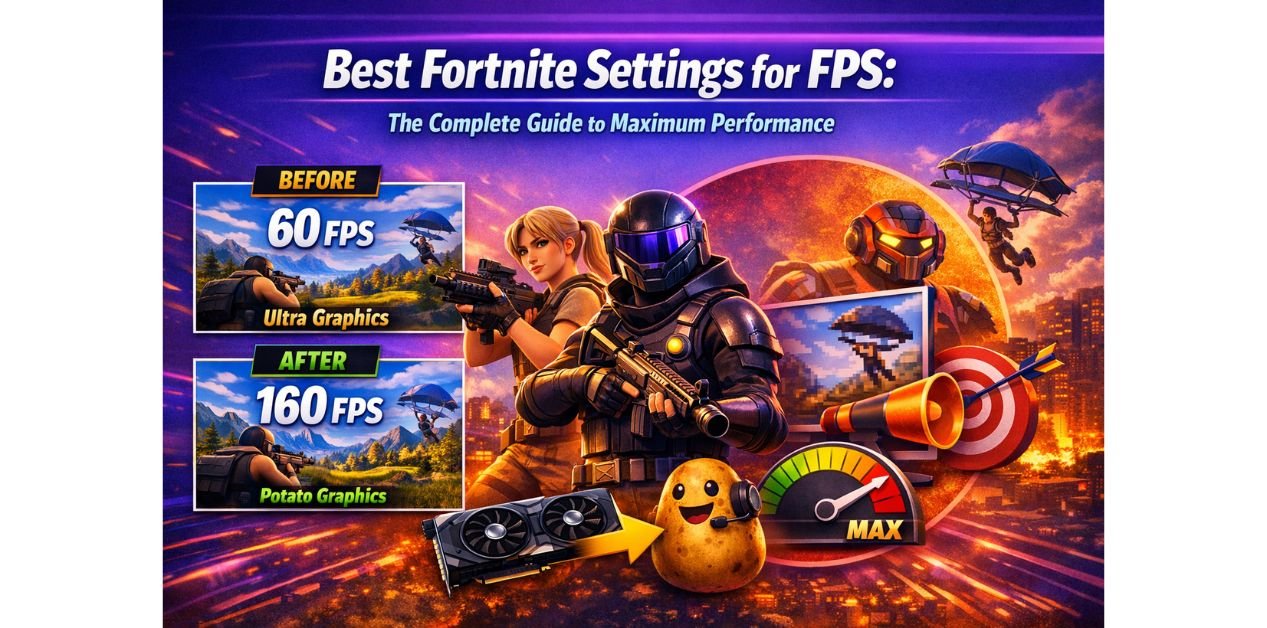
Best Fortnite Settings for FPS: The Complete 2026 Guide to Maximum Performance
Why Your Fortnite Settings Matter More Than Your Hardware
Most Fortnite players blame their hardware when the game feels sluggish. But here’s the truth – the gap between 40 FPS and 120 FPS on the exact same PC often comes down entirely to settings.
Table of Contents
Whether you’re playing on a high-end gaming rig or a budget laptop from 2018, the best Fortnite settings for FPS can transform how the game feels. Wrong settings mean wasted GPU cycles on shadows nobody notices, VSync adding lag you never asked for, and resolution scaling quietly destroying your frame rate in the background.
This guide covers everything: the best Fortnite video settings for FPS on PC, what pros and Reddit communities swear by, how to balance FPS with visibility and quality, how to fix ping alongside performance, and what’s changed heading into 2026. By the end, you’ll have a complete, copy-paste-ready settings profile that works for both low-end and mid-range systems.
Why FPS Settings in Fortnite Are Different From Other Games
Fortnite uses Unreal Engine 5, which is one of the most scalable game engines available. That scalability cuts both ways. On powerful hardware, it looks stunning. On weaker machines, it can be configured to run lean and fast – but only if you know which settings actually matter.
Not every setting impacts FPS equally. Some settings – like Shadows, Post Processing, and Anti-Aliasing – have an enormous impact on GPU load. Others, like Brightness or Motion Blur, affect visuals with almost no performance cost. Knowing which is which is the difference between a smart optimization and wasted effort.
Fortnite also updates frequently, and each major season can change how settings behave. This guide reflects the best Fortnite settings for FPS in 2025 and 2026, accounting for recent engine updates and the current state of the game.
Best Fortnite Video Settings for FPS on PC
These are the core settings – the ones that directly determine how many frames per second your GPU and CPU can push. Apply these first before anything else.
1. Display Settings
Window Mode: Always set this to Fullscreen, not Windowed or Borderless Windowed. True Fullscreen gives your GPU exclusive control of the display output, which reduces latency and allows higher frame rates.
Display Resolution: Match this to your monitor’s native resolution if your GPU can handle it. If you’re on a low-end system, drop to 1280×720. Lower resolution is the single biggest FPS lever available – dropping from 1080p to 720p can increase FPS by 40 to 60 percent on weaker hardware.
Frame Rate Limit: Set to Unlimited, or cap it just above your monitor’s refresh rate (for example, 144 if you have a 144Hz monitor). Never cap below your monitor’s refresh rate – it wastes headroom.
VSync: Always Off. VSync caps your frame rate to match your monitor and introduces input lag. On a competitive game like Fortnite, this is pure downside. Turn it off without exception.
Motion Blur: Off. Motion blur adds a processing cost and makes the game harder to track visually. No competitive player uses it.
2. The Core Graphics Settings
These are the settings that most dramatically affect FPS:
Rendering Mode: This is the most important single setting for low and mid-range systems. Switch from DirectX 11 or DirectX 12 to Performance Mode (Alpha). Performance Mode uses a stripped-down rendering pipeline that dramatically reduces GPU load. On systems without a dedicated GPU, it can nearly double your FPS instantly.
3D Resolution: Set to 100% if your GPU can handle it, or drop to 75-85% for a meaningful FPS boost with minimal visual impact. This setting scales how many pixels are actually rendered before being upscaled to your display resolution. Dropping it slightly is far less jarring than lowering your full screen resolution.
View Distance: Near or Medium. This controls how far the game renders distant geometry and structures. Medium is a good middle ground – you’ll see players at practical engagement distances without the GPU load of Far or Epic.
Shadows: Off. This is non-negotiable for maximum FPS. Shadows are one of the most GPU-intensive settings in any game, and in Fortnite’s fast-paced environment, they add minimal tactical value. Turning shadows off can add 15 to 25 FPS on most systems.
Global Illumination: Low or Off. This setting controls how light bounces around the environment. It looks great on Ultra but hammers performance. Low or Off is the right call for FPS-focused play.
Anti-Aliasing: Off or Epic – and here’s why this seems counterintuitive. On Performance Mode, Anti-Aliasing has minimal cost and Off can look rough. On DirectX rendering modes, Off gives you a clear FPS benefit. In Performance Mode specifically, setting it to Epic actually uses a temporal upscaling technique that can look better than Off without significantly hurting performance.
Textures: Low or Medium. Texture quality affects VRAM usage more than raw GPU performance. If you have 4GB or less of VRAM, use Low to avoid stuttering. With 6GB or more, Medium is fine and looks noticeably better.
Effects: Low. Explosion effects, particle systems, and environmental effects all draw GPU cycles. Low keeps these minimal without affecting gameplay readability.
Post Processing: Low. This covers bloom, lens flares, color grading, and depth of field – none of which help you play better, and all of which cost performance.
3. Complete Settings Reference Table
| Setting | Best for FPS | Best for FPS + Quality | Notes |
|---|---|---|---|
| Window Mode | Fullscreen | Fullscreen | Never Borderless |
| Resolution | 1280×720 | Native | Drop for big FPS gain |
| Frame Rate Limit | Unlimited | Unlimited | Or match monitor Hz |
| VSync | Off | Off | Always off |
| Rendering Mode | Performance | DX12 | Performance = best FPS |
| 3D Resolution | 75% | 95% | Key lever for FPS |
| View Distance | Near | Far | Medium is fine too |
| Shadows | Off | Medium | Huge FPS impact |
| Anti-Aliasing | Off | Epic | Context-dependent |
| Textures | Low | Medium | VRAM-dependent |
| Effects | Low | Low | Minimal visual loss |
| Post Processing | Low | Low | No gameplay value |
| Motion Blur | Off | Off | Always off |
Best Fortnite Settings for FPS and Quality
If you’re not on a severely underpowered machine and want to balance visual quality with strong performance, the answer isn’t splitting the difference on every setting. It’s being surgical – keeping high quality where it matters visually and turning off what you’ll never notice.
Here’s the hierarchy for FPS and quality balance:
Keep these higher: Textures (Medium to High), View Distance (Medium to Far), Anti-Aliasing (Epic in Performance Mode). These settings have the biggest visual impact and their quality versions are reasonably affordable on a mid-range GPU.
Keep these off or low regardless: Shadows, Motion Blur, Post Processing, Effects. These settings cost significant performance and provide virtually no competitive or visual advantage in practice. Professional players on high-end machines keep these off.
The 3D Resolution compromise: Rather than lowering your screen resolution, try keeping native resolution but setting 3D Resolution to 85–90%. The game renders at slightly below native and upscales, which is much less visually jarring than a full resolution drop while still providing meaningful FPS improvement.
On a mid-range GPU like an NVIDIA GTX 1660 or AMD RX 580, this balance typically delivers 90 to 120 FPS at 1080p – solid performance with a game that looks clean and clear.
Best Fortnite Settings for FPS on Low End PC
Low-end optimization requires a more aggressive approach. The goal here is maximum frames, not visual fidelity. These settings are specifically tuned for systems with integrated graphics, 4GB RAM, or GPUs below the GTX 1050 class.
1. Enable Performance Mode Immediately
If you haven’t already, this is step zero. Go to Settings → Video → Rendering Mode and select Performance (Alpha). This changes the entire rendering pipeline to a much lighter version. Everything else builds on top of this.
2. The Low End Settings Profile
Set everything to its minimum: Resolution to 1280×720, 3D Resolution to 75%, View Distance to Near, all quality settings (Shadows, Textures, Effects, Post Processing, Anti-Aliasing) to Off or Low. Disable Motion Blur. Set Frame Rate Limit to Unlimited.
On a system with Intel HD 620 integrated graphics or an NVIDIA GT 1030, this configuration typically produces 45 to 75 FPS – playable and competitive.
3. Windows-Level Tweaks for Low End Systems
Beyond Fortnite’s own settings, these Windows changes are essential on low-end machines:
Set your Power Plan to High Performance (Win + R → powercfg.cpl → Show additional plans → High Performance). This prevents your CPU from throttling down during gameplay.
Close all background applications before launching. On a system with 4GB RAM, every background process directly reduces what’s available to Fortnite. Close your browser, Discord, Spotify, and any unnecessary apps via Task Manager before you load the game.
Set Fortnite’s process priority to High. Open Task Manager while the game runs, find Fortnite in the Processes tab, right-click it, and select Go to Details. Right-click the process in Details and set priority to High. This tells Windows to prioritize Fortnite’s CPU requests over everything else.
Best Fortnite Settings for FPS and Visibility
Visibility is often sacrificed for FPS, but it doesn’t have to be. Visibility refers to how easily you can see enemies against backgrounds – and some settings actually improve visibility while also helping FPS.
1. Brightness and Color
Set your in-game Brightness slightly above default – around 100 to 110%. This makes enemies in dark areas more visible without affecting FPS at all. In your NVIDIA or AMD control panel, you can also increase Digital Vibrance (NVIDIA) or Saturation (AMD) to around 65-70%. This makes player models pop against backgrounds and is used by virtually every competitive Fortnite player.
2. Why Shadows Off Helps Visibility Too
Counterintuitively, turning Shadows off often improves enemy visibility. Dynamic shadows can obscure the ground, create visual noise around structures, and make crouching enemies harder to spot. With shadows off, lighting is flatter and more uniform, making players easier to track against backgrounds. This is why turning shadows off is both the best FPS choice and the best visibility choice simultaneously.
3. View Distance and Visibility
Keep View Distance at Medium or higher if your system can afford it. Near view distance causes distant structures to pop in and out visibly, which can be disorienting and occasionally hides enemies in the pop-in zone. Medium is the minimum for comfortable visual play.
4. Anti-Aliasing and Visibility
With Anti-Aliasing off, distant players can become harder to see due to aliasing artifacts at edges. In Performance Mode, setting Anti-Aliasing to Epic uses temporal upscaling that actually improves how distant players render. This is a case where a higher setting both looks better and plays better competitively.
Best Fortnite Settings for FPS and Ping
FPS and ping are separate problems, but they’re linked in one important way: a system that’s overwhelmed producing frames is also a system that’s struggling to manage network packets reliably. Fixing both together makes the game feel dramatically smoother.
1. Network Settings Inside Fortnite
Go to Settings → Game and enable Visualize Net Debug Stats. This shows you your ping, packet loss, and jitter in real-time. Packet loss – not just high ping – is often the real cause of the rubberbanding and delayed shots that players attribute to lag.
2. Reduce CPU Load to Stabilize Network Performance
A CPU running at 100% while trying to render Fortnite frames has fewer cycles available for processing network packets. All the FPS settings above help here – by reducing GPU and CPU load, you free up processing headroom that the system can use to handle network traffic more consistently.
3. Windows Network Tweaks for Better Ping
Disable Windows Update’s peer-to-peer delivery optimization. Go to Settings → Update & Security → Delivery Optimization and switch off “Allow downloads from other PCs.” This feature uses your internet connection to share Windows updates with other users in the background – directly competing with your game for bandwidth.
If you’re on WiFi, switch to a wired ethernet connection whenever possible. WiFi adds 10 to 30ms of latency on average and introduces jitter that a wired connection doesn’t. Even a cheap ethernet cable makes a measurable difference.
Set your DNS server to a faster alternative. Go to your Network Adapter settings, open IPv4 properties, and set DNS to 8.8.8.8 (primary) and 8.8.4.4 (secondary) for Google’s servers, or 1.1.1.1 and 1.0.0.1 for Cloudflare. Either is typically faster than ISP-provided DNS.
Close bandwidth-heavy background apps. Torrent clients, cloud backup services like OneDrive or Google Drive, and streaming services all compete for your upload and download bandwidth while you play.
Best Fortnite Settings for FPS in 2025 and 2026
Fortnite’s Unreal Engine 5 updates have changed the performance landscape compared to previous years. Here’s what’s different heading into 2026 and what it means for your settings.
1. Lumen and Nanite Are Performance Killers
Epic’s flagship UE5 features – Lumen (dynamic global illumination) and Nanite (virtualized geometry) – are beautiful but expensive. On low and mid-range hardware, these should be kept at their lowest possible settings. Global Illumination on Low and Shadows off effectively disables most of Lumen’s overhead.
2. Performance Mode Has Matured
Performance Mode, which launched as an alpha feature, has improved significantly through 2024 and 2025. It’s now stable and recommended for all systems below a GTX 1660 class GPU. The visual quality in Performance Mode has also improved – it’s no longer as stark a downgrade as it was at launch.
3. DLSS and FSR Support
If you have an NVIDIA RTX GPU, DLSS (Deep Learning Super Sampling) is one of the best tools available for getting more FPS without visual sacrifice. AMD FSR is available for AMD GPU users. Both can be enabled in the video settings and allow the game to render at a lower resolution and upscale intelligently, often matching or exceeding native resolution quality at significantly higher frame rates.
What the Reddit Community Says in 2025–2026
The Fortnite FPS settings Reddit community (r/FortNiteBR and r/FortniteCompetitive) consistently recommends the same core approach: Performance Mode enabled, Shadows off, Post Processing low, VSync off, and Fullscreen mode. The most debated setting is Anti-Aliasing – with Performance Mode, the consensus has shifted toward keeping it at Epic for the upscaling benefit rather than turning it off. The most overlooked Reddit-recommended tweak is adjusting NVIDIA Digital Vibrance or AMD Saturation for better visibility – it costs nothing in FPS and makes a real competitive difference.
Frequently Asked Questions
1. What are the best Fortnite settings for FPS on PC in 2026?
The best settings for maximum FPS are: Fullscreen mode, Performance rendering mode, VSync off, Motion Blur off, Shadows off, Post Processing Low, Effects Low, Textures Low to Medium, and Frame Rate Limit set to Unlimited. These settings consistently produce the highest FPS across all hardware tiers.
2. Do the best Fortnite FPS settings work on a low end laptop too?
Yes, with the same core settings. Additionally, on a laptop you should ensure you’re plugged into power, playing on a hard surface for airflow, and have your GPU drivers set to use the discrete GPU (not integrated) for Fortnite. Thermal throttling is a common laptop-specific issue that no settings change will fix – clean your vents if you’re experiencing sudden mid-game FPS drops.
3. Will lowering settings affect how well I can see enemies?
Not necessarily. Turning Shadows off and increasing Digital Vibrance in your GPU control panel often improves enemy visibility compared to default settings. The settings that hurt visibility are lowering View Distance (avoid going below Medium) and turning off Anti-Aliasing when not in Performance Mode.
4. What’s the best frame rate limit setting in Fortnite?
For competitive play, set Frame Rate Limit to Unlimited. If your system runs above your monitor’s refresh rate, consider capping at your refresh rate plus 20 to 30 FPS (for example, 164 FPS if you have a 144Hz monitor) to give the GPU slight headroom without the waste of pushing frames the monitor can’t display.
5. Does 3D Resolution affect FPS more than lowering screen resolution?
Yes – and 3D Resolution is the more elegant solution. Dropping 3D Resolution from 100% to 75-85% gives a meaningful FPS boost with less visual disruption than dropping your full display resolution. Try it before lowering your screen resolution.
Conclusion: Apply These Settings in Order and Watch the Numbers Climb
The best Fortnite settings for FPS aren’t mysterious – they’re consistent across platforms, hardware levels, and years of community testing. Enable Performance Mode, turn shadows off, disable VSync, run in Fullscreen, and free up your system’s resources for the game.
Start with the in-game video settings since those deliver the biggest gains fastest. Then move to the Windows-level tweaks. If ping is your issue, address the network side separately with the ethernet, DNS, and bandwidth steps above. And if you’re on 4GB RAM or integrated graphics, the low-end profile in this guide is built for exactly your situation.
Your action step right now: Open Fortnite, navigate to Settings → Video, switch your Rendering Mode to Performance, turn Shadows off, and disable VSync. Check your FPS before and after using the in-game FPS counter (Settings → Video → Show FPS). That alone will show you what’s possible – and the rest of this guide builds from there.